Passports, then All Passports, is the list of every passport on the site: one row per product, whatever its state. It is where a catalogue is reviewed before it goes public, and the completeness score is what makes that review fast.
One row per product
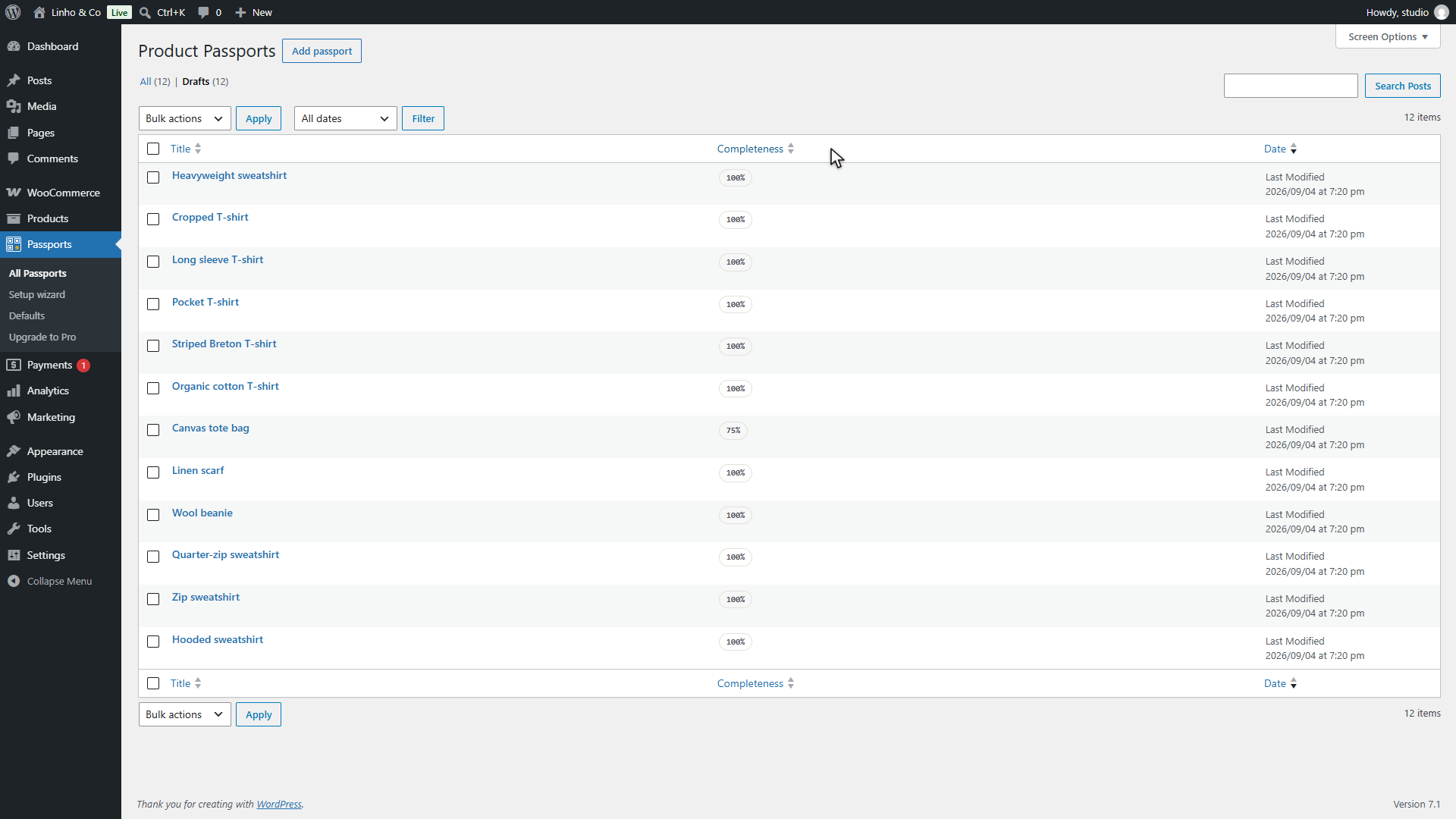
Each row carries the product's name, its completeness score and its date. The usual WordPress tools apply: the All, Published and Drafts filters above the table, the search box, the checkboxes for a bulk action, and the row actions that appear on hover. One of them, View, opens the public page in a new tab; it is there on published passports, since a draft has no public page yet.
Click the Completeness column header to sort by score. Ascending puts the emptiest passports first, which is the useful order: the ones that need work come to the top and the finished ones drop out of sight.
What the score counts
The score is the share of a template's required fields that are filled, rounded to a whole percentage. Only required fields count; an optional field left empty never lowers it.
| Template | Required fields |
|---|---|
| Textile and apparel | Materials, country of origin, care instructions, recycling instructions |
| Furniture | Main materials, country of origin, recycling instructions |
A passport created by the wizard often starts at 100% on the spot: the required fields are exactly the ones a store default or a category composition tends to cover. A lower score is not an error and does not block anything. It is a to-do list, and a passport can be published at any score.
The score is recomputed every time a passport is saved, so it always reflects the data as it is now.
The score in the editor
Open a passport and the same score sits at the top of the form, with a meter under it. Each group of fields is an accordion, and a group that still has an empty required field shows a count badge on its header, so the missing detail is found without opening every group.
Optional fields are the ones the regulation's known requirements name without making them mandatory for everyone, or the ones that only make sense for some products: substances of concern, the batch number, repairability information, the carbon footprint. Fill them when you have the data; the public page shows only what is filled, so an empty optional field simply does not appear.
On the products list
The WooCommerce products list gets a Passport column. A product without a passport shows a dash. A product with one shows its state, Draft or Published, with the score, and three shortcuts: edit the passport, preview the public page in a dialog, and show the QR code with its download. The two last ones appear on published passports only, because a draft has no public page to preview and no code worth printing yet.
The same shortcuts sit in the product editor, in a Digital passport box on the side. For a product without a passport, that box holds a Create passport button, which makes one pre-filled from the defaults, the same way the wizard does.
Where to go from here
- Bulk actions: create passports for many products at once, and publish many at once.
- QR codes and labels: what to print once a passport is published.
- Your first passport shows the list in context, right after the wizard.