Most of what a passport says is true of every product of a sector: the country of origin, the care instructions, the recycling instructions, the warranty. Store defaults are where those values live. Set once, they pre-fill every passport created afterwards, and the form of each product only has to receive what is specific to it.
The Defaults screen
Passports, then Defaults, holds one tab per sector template, textile and furniture today, and each new template ships with its own tab. Inside a tab, the fields are grouped as on the passport form, in accordions. Everything is one form: a single Save defaults writes every tab at once, so switching tabs before saving loses nothing.
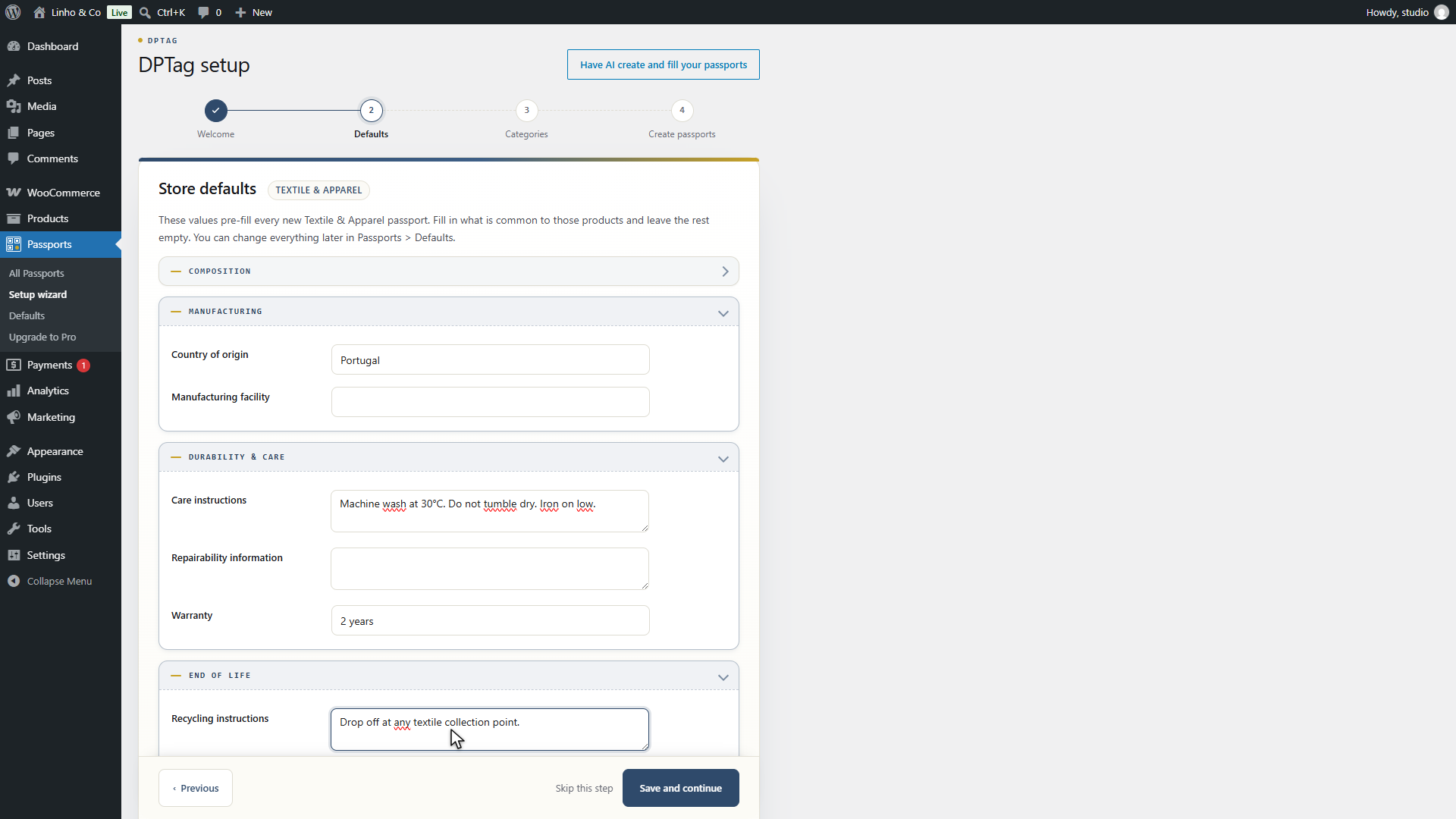
The setup wizard's second step is this screen for one sector, the one it detected as dominant in your catalogue. Everything the wizard saved is here, and this is where the defaults of a second sector are set.
What belongs in a default
A value that is true for every product of the sector, or for nearly every one. The test is simple: if you would have to correct it on more than a few products, it is not a default, it is a per-product field.
- Country of origin, when the sector is made in one country.
- Care instructions, when a range shares one care routine.
- Recycling instructions and the take-back scheme, which are usually the same across a brand.
- Warranty, if you offer one on the whole range.
- Composition, only as a fallback: the composition of a sector is rarely uniform, and it is better set per category. A category left empty inherits the store composition, so the field here is the value of last resort. It is typed as free text, "80% organic cotton, 20% recycled polyester", and parsed into materials and percentages when a passport is created.
Leave everything else empty. An empty default does nothing; there is no penalty for it, and a field that varies per product is better left for the product's own passport than pre-filled with a value that is sometimes wrong.
Fields that are by nature unique to one item, the batch number for instance, are not offered here at all.
When defaults apply
Defaults are read when a passport is created, whether by the wizard, by the products list bulk action, by the product editor or by the AI. A passport is born with the resolved values written into it, and from then on it holds its own copy.
Two consequences, both deliberate:
- Changing a default does not touch existing passports. They keep the values they were born with. A default corrected today applies to the passports created from today on. To carry a correction to passports that already exist, edit them, or trash and recreate them if none is published yet.
- A value edited on a passport is never overwritten by a default, nor by anything else, unless you type over it.
Order of priority
When a passport is created, each field takes the most specific value available:
- A product attribute with a recognised name, the WooCommerce attribute "Composition" or "Country of origin" for instance. See product attributes.
- The category composition, for the composition field only.
- The store default of the product's sector.
A store default is therefore the value a product gets when nothing more specific says otherwise. The AI autofill sits below all three: it only fills what is still empty after them, unless you tick the option on this screen that lets it double-check the store defaults on each product. That option is described on the AI autofill page.
Sector of a product
Defaults are per sector, and each product is attributed a sector by its categories, its attributes and its text. A furniture product in a mostly textile catalogue gets the furniture defaults. The sector of a passport can be switched in its editor, in which case the form changes to the other template's fields.